搜尋、座標、地圖選點Search, coordinates, and map selection
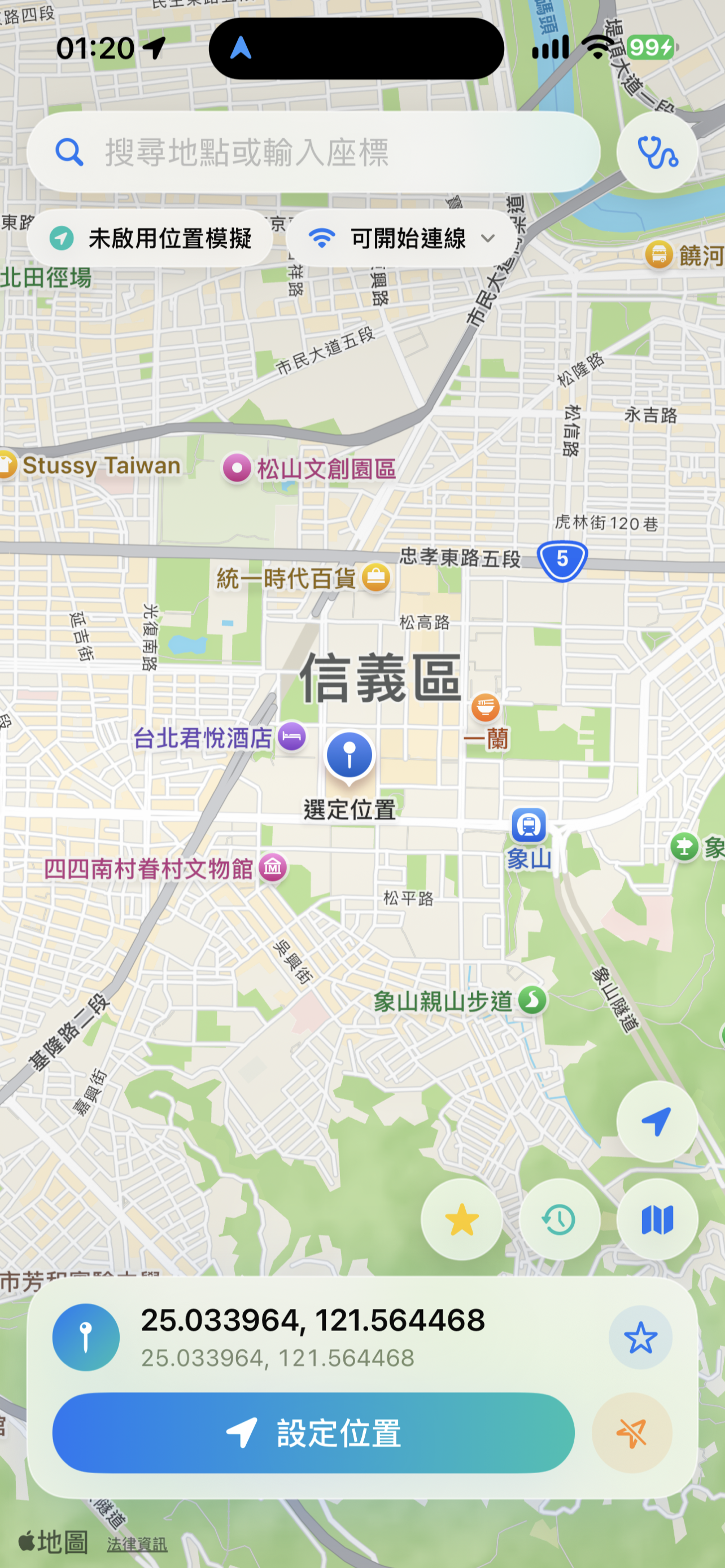
搜尋地標,貼上 latitude, longitude,或直接在地圖上挑選測試位置。Find a landmark, paste latitude, longitude, or choose a test position directly on the map.
 LocationLab
iOS 26+ · LocationLab
LocationLab 是給 iOS 開發者與 QA 使用的位置測試工具。選一個地點,或建立一條路線,在自己的 iPhone 上測試;完成後,清除模擬並恢復真實位置。
LocationLab helps iOS developers and QA teams test location-based features. Pick a place or build a route on your own iPhone. When you finish, clear the simulation and restore the real location.
功能Features
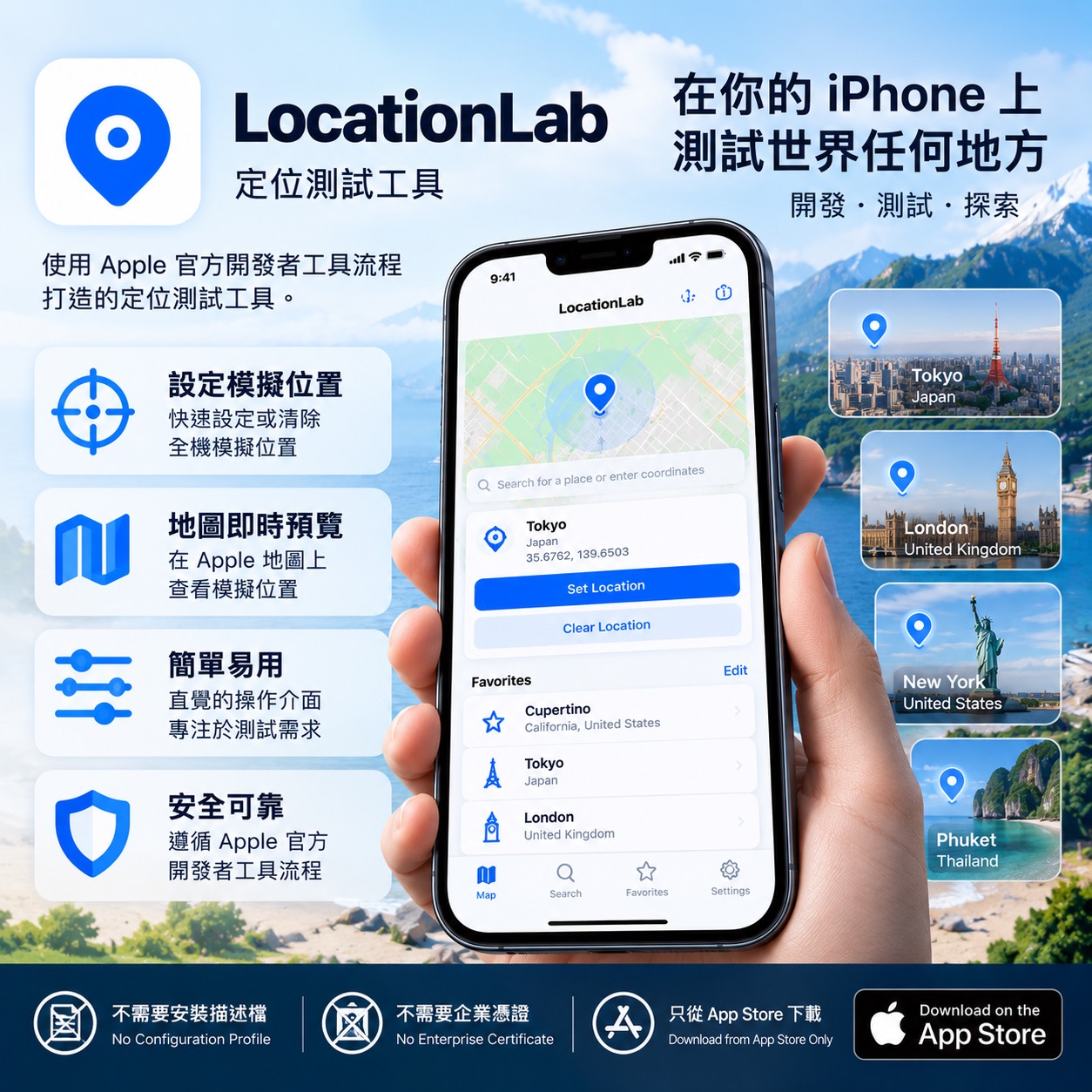
搜尋、座標輸入與路線編輯,都在 App 的地圖上操作。
Search, enter coordinates, and edit routes from the map in the app.
搜尋地標,貼上 latitude, longitude,或直接在地圖上挑選測試位置。Find a landmark, paste latitude, longitude, or choose a test position directly on the map.
匯入 GPX 或自行建立路線,設定移動速度、每站停留時間與循環播放。也可以讓速度在設定範圍內忽快忽慢。Import a GPX file or create a route. Choose the speed, time at each stop, and whether to loop. You can also vary the speed within a set range.
使用 iOS 的開發測試功能,查看自己的測試裝置在不同位置時,相關功能是否正常。Use the iOS development testing workflow to check how location-based features behave at different places on your own test device.
測試結束後,按「清除/恢復真實位置」,再到 Apple 地圖確認定位已恢復。When you finish, tap Clear / Restore Real Location, then check the location in Apple Maps.
實際操作See it in action
從地圖選擇測試位置、設定路線,到完成後恢復真實位置,先用短片快速了解操作方式。
Watch a quick demonstration of selecting a test location, working with routes, and restoring the real location when testing is complete.
YouTube 實機影片
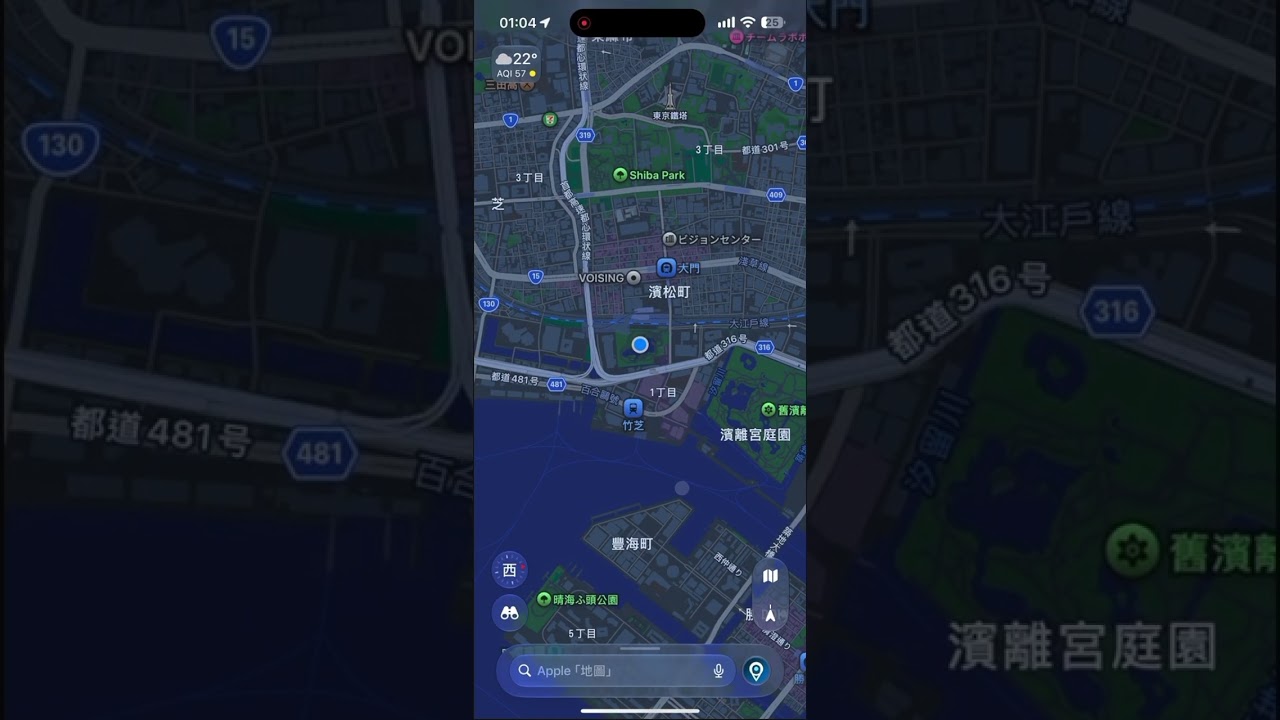
觀看 LocationLab 在 iPhone 上進行位置測試與路線操作的實際示範。
YouTube device demo
Watch LocationLab demonstrate location testing and route controls on iPhone.
點擊後才會開啟 YouTube,不會在本頁自動播放。 YouTube opens only after you select the link; nothing autoplays on this page.
一次設定One-time setup
第一次使用時,以 USB 將 iPhone 接上電腦。新版 LocationLab 設定助理會依序檢查信任、開發者模式並建立配對檔;匯入同一支 iPhone 後即可拔掉 USB,在手機上操作。配對檔只適用於該裝置,請妥善保管。
For first-time setup, connect your iPhone to a computer over USB. The new LocationLab Setup Assistant guides you through Trust, Developer Mode, and pairing-file creation. Import the file into the same iPhone, then unplug USB and work from the phone. Keep the file private.
電腦需求:Mac 工具目前支援 macOS 14+ Apple Silicon;Windows 正式支援 Windows 10 22H2 x64(組建 19045)與 Windows 11 x64,並須能正常安裝及開啟 Apple Devices。Windows 10 20H2 或更舊版本與 Intel Mac 目前不支援;完整檢查方式請見支援頁。Computer requirements: Mac utilities currently support Apple Silicon on macOS 14 or later. Windows 10 22H2 x64 (build 19045) and Windows 11 x64 are supported, and Apple Devices must install and open successfully. Windows 10 20H2 or earlier and Intel Macs are not currently supported. See Support for the full compatibility check.
配對失敗?查看 idevice_pair 備用工具教學 →Pairing failed? Try the idevice_pair alternative →
若設定中沒有選項,使用開發者模式助理讓 iPhone 顯示開關,再由你自行開啟並確認。If the option is missing, use Developer Mode Assistant to reveal the switch, then enable and confirm it yourself.
使用支援的 Mac 或 Windows PC,解鎖 iPhone 並核准信任;完整需求請見支援頁。Use a supported Mac or Windows PC, unlock the iPhone, and approve Trust. See Support for complete requirements.
將 Assistant 產生的檔案匯入同一支 iPhone。Import the file created by the Assistant into the same iPhone.
建立或重建本機安全連線時需要 Wi‑Fi。Wi‑Fi is required when creating or rebuilding the secure local connection.
資料與隱私Data & privacy
配對檔、收藏與一般路線預設留在 iPhone;LocationLab App 本身不要求帳號。只有在你主動建立或執行「路線執行碼」時,所選路線及必要的訂閱與安全驗證資料才會送到服務端,以提供限時分享。含廣告版本的免費使用者可能看到廣告;有效 Pro 訂閱期間不顯示廣告。詳細處理、保存與刪除方式請見隱私權政策。
Pairing records, favorites, and ordinary routes remain on the iPhone by default, and the LocationLab app itself does not require an account. Only when you choose to create or run a Route Execution Code is the selected route, together with necessary subscription and security-verification data, sent to the service for time-limited sharing. Free users of versions with ads may see ads; an active Pro subscription removes them. See the privacy policy for processing, retention, and deletion details.
一起交流Community
交流使用心得、提出問題,分享你對 LocationLab 的建議。Exchange tips, ask questions, and share your ideas for LocationLab.
加入 LINE 社群Join on LINE手機可直接點選加入,或使用 LINE 掃描 QR Code。請勿在社群公開配對檔、帳號或其他個人資料。Tap to join on your phone, or scan the QR code with LINE. Please do not post pairing files, account details, or other personal information in the community.

一對一支援Direct support
需要協助處理安裝、配對或連線問題時,可透過官方帳號取得一對一技術支援。Get one-to-one technical support for installation, pairing, or connection issues.
加入 LINE 官方帳號Add the official account請提供 App/iOS 版本、錯誤代碼及已遮蔽的畫面;切勿傳送配對檔、密碼、完整 UDID 或其他秘密資料。Share the app and iOS versions, error reference, and redacted screenshots. Never send pairing files, passwords, a full UDID, or other secrets.

測試結束後After testing
測試時,Apple 地圖與其他使用定位的功能可能顯示模擬位置。使用導航、位置分享、緊急服務或其他安全相關功能前,請先清除模擬,並確認真實位置已恢復。
During a test, Apple Maps and other location-based features may show the simulated position. Before using navigation, location sharing, emergency services, or other safety-critical features, clear the simulation and check that your real location has returned.